
How to draw wedge and hash bonds and check R/S
Tutorial · macOS and Windows
Stereochemistry in a 2-D drawing lives in its wedges. ChemPencil does not
treat them as decoration: it reads them back as real configuration, so the
(R)/(S) in a generated name, the @/@@ in SMILES and
the stereo layer of the InChI all follow what you drew.
Draw a wedge
- Pick the wedge tool in the palette. Press and hold it to choose the hashed wedge or wavy bond instead.
- Start the bond on the stereocentre: click the atom to extend a bond from it, or drag from it. The narrow end of the wedge sits on the atom you start from.
- To turn an existing bond into a wedge, click it with the wedge tool. Click it again to flip which end is narrow.
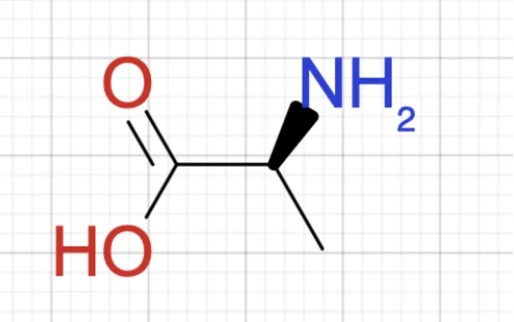
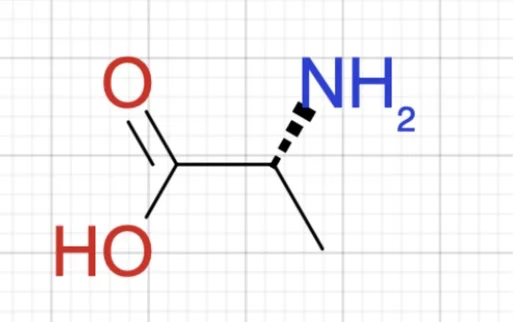
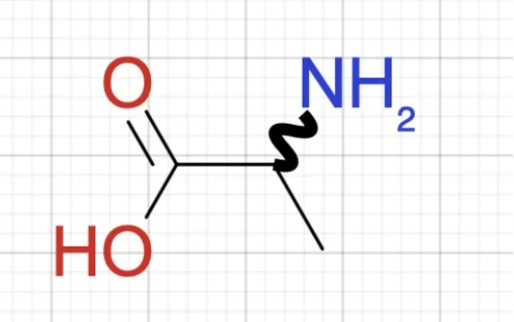
On Mac you can also hover over a bond and press a Magic Hotkey: w wedge, h hashed wedge, y wavy, 1 back to a plain single bond.
Check the configuration
- Choose . The name is added under the
structure with its descriptor, for example
(S)-2-aminopropanoic acidfor L-alanine. - Or copy the SMILES or InChI (see InChI and InChIKey) and compare it with the reference value.
If the descriptor is the opposite of what you expect, the wedge is probably drawn from the wrong end. Click it again with the same tool to flip it, or use a hashed wedge instead.
Double bonds: E and Z
Double-bond geometry is read from the drawing too: a drawn alkene counts
as defined, so trans-but-2-ene copies as C/C=C/C and
its name and InChI carry the (E) configuration. Small rings (under eight
atoms) are excluded, as their geometry is fixed.
Try it yourself. ChemPencil runs on macOS 12 and later and on Windows 10 and 11.